
User Guide
How to use Wondershare UniConverter (originally Wondershare Video Converter
Ultimate)?
Learn the step-by-step guide below.

UniConverter User Guide
-
Toolbox-en
- Image Converter | Wondershare UniConverter for Windows
- GIF Maker | Wondershare UniConverter for Windows
- Fix Video Metadata | Wondershare UniConverter for Windows
- CD Burner | Wondershare UniConverter for Windows
- Convert CD to MP3 | Wondershare UniConverter for Windows
- Convert Video to VR | Wondershare UniConverter for Windows
- Transfer Video/Audio Files to iOS Device | Wondershare UniConverter for Windows
- Transfer Video/Audio to Android Device | Wondershare UniConverter for Windows
- Transfer | Wondershare UniConverter for Mac
- Image Converter | Wondershare UniConverter for Mac
- GIF Maker | Wondershare UniConverter for Mac
- Fix Media Metadata | Wondershare UniConverter for Mac
- CD Converter | Wondershare UniConverter for Mac
- CD Burner | Wondershare UniConverter for Mac
- VR Converter | Wondershare UniConverter for Mac
- Subtitle Editor | Wondershare UniConverter for Windows
- Subtitle Editor | Wondershare UniConverter for Mac
- Watermark Editor | Wondershare UniConverter for Windows
- Watermark Editor | Wondershare UniConverter for Mac
- Smart Trimmer | Wondershare UniConverter for Windows
- Smart Trimmer | Wondershare UniConverter for Mac
- Background Remover | Wondershare UniConverter for Windows
- Background Remover | Wondershare UniConverter for Mac
- Auto Crop Video | Wondershare UniConverter
- Auto Crop Video | Wondershare UniConverter for Mac
- AI Portrait | Wondershare UniConverter
- AI Portrait | Wondershare UniConverter for Mac
- Intro & Outro | Wondershare UniConverter
- Intro & Outro | Wondershare UniConverter for Mac
- Vocal Remover | Wondershare UniConverter for Windows
- Vocal Remover | Wondershare UniConverter for Mac
- Noise Remover | Wondershare UniConverter for Mac
- Noise Remover | Wondershare UniConverter for Windows
- MP3 Cutter | Wondershare UniConverter for Mac
- Guide to Use Voice Changer on UniConverter for Windows
- Voice Changer | Wondershare UniConverter for Mac
-
Video Converter-en
- Convert DVD to Any Format | Wondershare UniConverter for Windows
- Add Media Files | Wondershare UniConverter for Windows
- Convert Video from Camcorder | Wondershare UniConverter for Windows
- Convert Videos for iPhone/iPad/Android Devices | Wondershare UniConverter for Windows
- Convert Videos for Social Network | Wondershare UniConverter for Windows
- Convert Videos from iOS & Android Devices | Wondershare UniConverter for Windows
- Convert Videos to Any Format | Wondershare UniConverter for Windows
- Convert Video to Audio | Wondershare UniConverter for Windows
- Convert Videos to Any Format | Wondershare UniConverter for Mac
- Convert DVD to Video | Wondershare UniConverter for Mac
- Mute Video | Wondershare UniConverter for Mac
- Mute Video | Wondershare UniConverter for Windows
- Add Audio to Video | Wondershare UniConverter for Windows
- Add Audio to Video | Wondershare UniConverter for Mac
-
Get Started
- Get Started | Wondershare UniConverter for Windows
- Login with Wondershare ID & Update | Wondershare UniConverter for Windows
- Brief Introduction | Wondershare UniConverter for Windows
- Preferences | Wondershare UniConverter for Windows
- Change Themes | Wondershare UniConverter for Windows
- Get Started | Wondershare UniConverter for Mac
- Login with Wondershare ID & Update | Wondershare UniConverter for Mac
- Brief Introduction | Wondershare UniConverter for Mac
- Preferences | Wondershare UniConverter for Mac
- Add Files | Wondershare UniConverter for Mac
-
Video Editor
- Trim Video | Wondershare UniConverter for Windows
- Add Watermark | Wondershare UniConverter for Windows
- Crop Video | Wondershare UniConverter for Windows
- Apply Effect | Wondershare UniConverter for Windows
- Add Subtitle | Wondershare UniConverter for Windows
- Audio Track Volume | Wondershare UniConverter for Windows
- Trim Video | Wondershare UniConverter for Mac
- Add Watermark | Wondershare UniConverter for Mac
- Crop Video | Wondershare UniConverter for Mac
- Apply Effect | Wondershare UniConverter for Mac
- Add Subtitle | Wondershare UniConverter for Mac
- Audio Track Volume | Wondershare UniConverter for Mac
-
Video Compressor
-
Screen Recorder
- Record Screen | Wondershare UniConverter for Windows
- Record Webcam | Wondershare UniConverter for Windows
- Record Audio | Wondershare UniConverter for Windows
- Record Audio | Wondershare UniConverter for Mac
- Record Webcam | Wondershare UniConverter for Mac
- Record Screen | Wondershare UniConverter for Mac
- Record Application | Wondershare UniConverter for Windows
-
Downloader
-
DVD Burner
-
Merger
-
Audio Converter
-
Play Video
FAQs
Video/Audio Solutions
Convert videos for iPhone/iPad/Android devices
Watching videos on your smartphone or tablet becomes convenient and entertaining if they are in a supported format and have a resolution that fits the screen of your device without pixelating. If you have movie clips that you want to watch on your iPhone, iPad, or Android phone, Wondershare UniConverter helps you convert the files in your preferred format pretty efficiently and easily. Here’s the procedure that you need to follow to get this done.
Convert Videos for iPhone iPad Android - Wondershare UniConverter (Win) User Guide
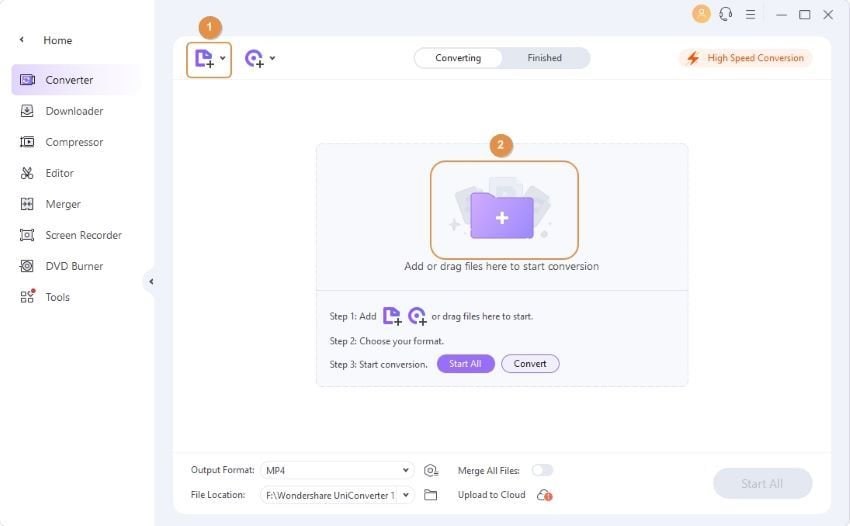
Step 1 Import videos to Wondershare UniConverter.
Launch Wondershare UniConverter, select Converter on the Home interface, click Add Files from the right window, and use the Open box to import the video(s) that you want to convert to your device-specific format and resolution.
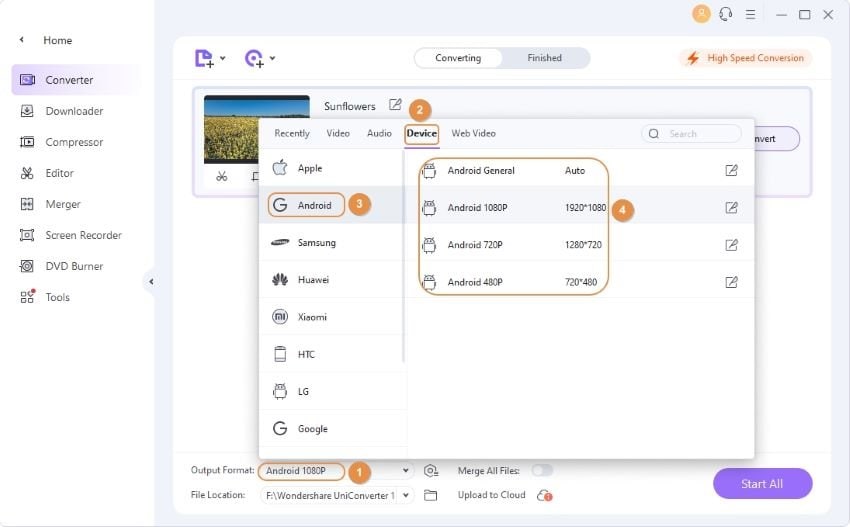
Step 2 Choose an output format.
Click and open the Output Format menu from the bottom of the right window, go to the Device tab, choose the manufacturer of the smart device you own from the left pane, and select its model from the right.
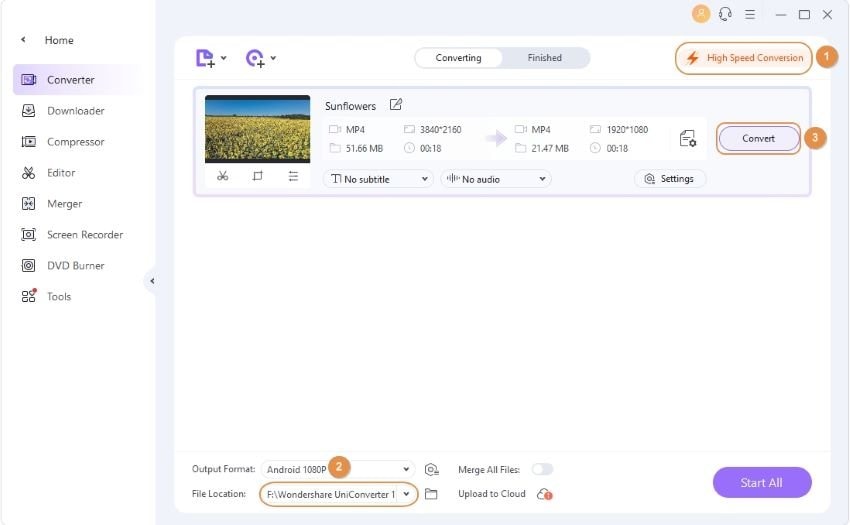
Step 3 Convert the clips.
Enable High Speed Conversion that is present at the top-right corner, choose a destination folder from the File Location field at the bottom, and click Convert (or Start All in case of multiple files).
Step 4 Access the converted files.
You will see the word "Success" when the conversion is done. Go to the Finished tab from the top to review the converted video that is present in the list.

 print
print