



Wondershare Recoverit
Data Recovery
Expert



















Distressed By Data Loss Attributable To These Causes?
Losing crucial data can be exasperating. In the event of such an occurrence, it is
advisable to
systematically troubleshoot the potential causes to enhance the prospects of data recovery.

Accidental Human Error
Accidentally pressed Shift+Del, emptied the recycle bin without backup, or improperly shut down a computer.

Storage Device Formatting
Format the wrong drive or partition by accident or when trying to clean up a system.

Virus Or Malware Attack
A virus or malware attack can corrupt or delete data on your storage device.

Data Transfer Interruption
The data being transferred may have yet to be fully written to the destination storage device.

Disk Corruption
A disk may get corrupted due to power outages or other reasons, causing the data to be unreadable or inaccessible.

Computer System Crash
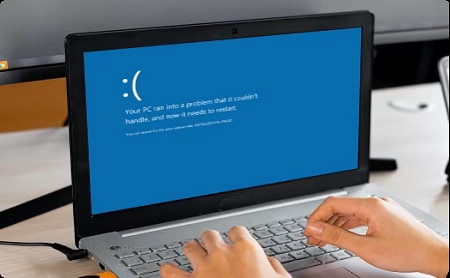
For example, a computer not being bootable, a blue screen of death, a black screen of death, etc.

Partition Loss
When a partition is lost, all the stored data will become inaccessible.

Software Malfunction
When software malfunctions, it may fail to save or retrieve data and even corrupt or delete data.
Advanced Data Recovery Capabilities For Comprehensive File Restoration
Recoverit data recovery software boasts an extensive range of advanced features that surpass initial
expectations.
By employing its patented recovery techniques, Recoverit adeptly recovers all lost data, preserving your
treasured memories.
Enhanced Photo & Video Recovery
Run a full scan to find all videos and photos on your
device. You can select the missing parts to recover and easily repair the corrupted ones. With patented
technology,
Recoverit also supports to gather and match the fragments of your Ultra HD, 4K, 8K videos, thus ensuring
most of your videos and photos are recovered.

Recoverit offers quick and deep scan modes to uncover recently deleted photos or find all deleted videos from various devices.

After scanning, recover the lost, deleted, or deeply hidden videos and photos to prevent losing them again.

Recover Ultra HD, 4K, and 8K videos while keeping them original and intact.

No format limit on video and photo recovery! Even fragments of 11 video formats can be retrieved by Recoverit's patented video recovery tech.

Restore pictures and videos from devices like camcorders, drones, DJI, dashcams, GoPro, DVRs, surveillance cameras, etc.

Repair the corrupted videos and make them playable! The Advanced Repair can repair severely damaged videos with a sample file.
Hard Drives & Locations Recovery
Scan and recover data from hard disk drives(system disk, local disk, and partition) as well as from USB flash drives or other external devices. It also offers quick access recovery from your disk image, desktop, selected folder, and recycle bin.

System Crashed Computer Recovery
Recoverit data recovery software can help you access and restore your data from the system-crashed computer by creating a bootable USB drive. Easily solve the Blue Screen of Death, unexpected reboots, and other system crash issues, saving your valuable data and precious time.

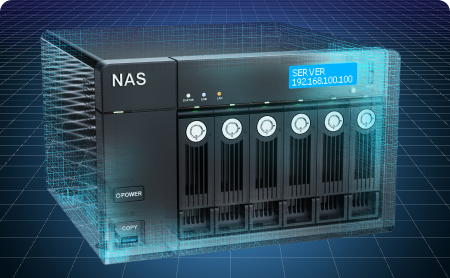
NAS Data Recovery
With the Wondershare Recoverit NAS Recovery feature, you can remotely recover lost data from failed or logically corrupted NAS servers like Synology, QNAP, and Thecus. No need to unplug the disk from the NAS.

Linux Data Recovery
With sound support for the EXT4, BTRFS, XFS, and BFS file systems, Recoverit Linux Recovery smoothly scans Linux devices and ensures that the data files are precisely recovered.

What Sets Wondershare Recoverit Apart?
Cultivated in the data recovery field for over 20 years,
the Recoverit product team has developed 35 top-notch patented technologies.
With this reliable and efficient data recovery expert, you can retrieve data from
all devices or media deemed unrecoverable by others.
1000+
File Formats
Recoverit data recovery expert supports restoring all types of files and file systems, like NTFS, FAT, HFS+, and APFS, with no data or charge commitment.
2000+
Storage Devices
Recover lost data from almost all devices or storage media with ease, such as PC/Mac (even with BitLocker or T2, M1/M2 chip-enabled), hard drive, USB flash drive, SSD, external hard disk, pen drive, action camera, drone, dashcam, camcorder, video/music player, etc.
500+
Scenarios
It can recover lost data due to accidental deletion, formatting, device corruption, virus attack, unknown error code, etc.
98%
Recovery Rate
Recoverit is one of the tools with the highest recovery success rate in the industry for retrieving data from all data loss scenarios.

35
Patented Technology
Wondershare Recoverit has been awarded 35 advanced patents for its innovative data recovery methods, including video fragment stitching recovery.
20
Years
With 20 years of experience, the Recoverit product team has extensive and professional knowledge of data recovery to take over all data loss problems.
We're Trusted & Recognized Globally






Recoverit Data Recovery is a flagship product of Wondershare, which is one of the most trusted brands in the data recovery industry. Recoverit Data Recovery has a vast presence in over 160 countries and is actively used by more than 5 million people. It is extremely easy to download Recoverit free version on one's Mac or Windows PC. The recovery tool has a free version available for every leading operating system. Though, to access its premium features, users need to get a paid subscription.
Wondershare Recoverit Data Recovery is the most popular software and trusted by customers on download.cnet.com. You can download Recoverit Data Recovery software for free.
It is possible to recover the deleted data using Wondershare Recoverit software. It brings a redesigned user interface that simplifies the process by which files are recovered - so now you only need to scan your system once to find your files. Scanning is much faster and you’ll see bigger preview boxes, helping you see exactly what you can recover, and once you decide to recover the files the recovery time is quicker than previously.
Recoverit promises to help you recover deleted, lost data, with a high recovery rate, making the process as stress-free as possible. Both available for Windows and macOS, Recoverit data recovery software is here to recover all file types including the files you use on a daily basis like photos, videos, audios, emails, and documents.
Many data recovery apps are basically bloatware, but Recoverit for Mac is the real deal. It’s lean, intuitive and effective, so you can easily recover photos, video and audio files, emails and all kinds of documents. Whether you lost data in an accident, thanks to a crashed operating system, the blue screen of death, or even boot issues, it’s a simple process to recover.

I had an HDD die - couldn't even see it in bios. I was able to do a sector-by-sector clone to a functioning HDD using an offline clone machine, but the data was still unreadable/corrupt. I downloaded the free trial of Recoverit and could see thousands of recoverable files. I purchased the Recoverit software and was able to restore over 300 gb of data I thought was gone forever. Highly recommended for corrupt or unreadable data you need to get back.

I'm a volunteer repairer at a UK Repair Cafe which is a world-wide Charity that repairs things for free to avoid landfill and CO2 and to help people that don't have the skills to do their repairs. I was asked to recover a lifetime of business and personal photos (about 2,900) from a phone memory card that had become seriously corrupted and had never been backed up! I tried everything I have and was about to give up when I tried Recoverit. An absolute miracle for the owner who couldn't have been more grateful. It isn't a tool for novices but if you have the patience to understand how it works and to wait for the results it might just be a miracle for you too.

I have used this video repair tool to repair videos in different formats, and every time it has proved itself to be a reliable video repair tool. Recoverit is very handy; if you want to have a preview of the file and don’t want to save it. The trial version allows you to preview the complete video file for free.

I am a professional real estate photographer and I lost my dng files due to a DLSR camera issue with the SD Card slots. Wondershare found and recovered the files on my SD Card I used to shoot 3 properties and saved me so I could still deliver the photos to my clients.

I lost a bunch of super important footage on an SD card and was able to use RepairIt and RecoverIt to get it all back. It was like 280+ videos and was worth every penny. The customer service chat people were instantly available and I chatted with them until 5 in the morning and we figured it out. This was life saving and saved me so much grief. THANK YOU!
Product Suite For Data Recovery, Repair, And Backup Solutions


Recoverit is an efficient data
recovery tool to retrieve lost data with simple clicks. The advanced version enables you to recover
deleted files, unpartitioned hard drives or USB drives, recover professional videos, and even rescue
your data from
a crashed computer. So, whether the files were deleted for any reason, this recovery expert can help
bring them back!

Recoverit Free
The free version of Recoverit to recover up to
100MB data.

UBackit

Repairit

Repairit Online

Repairit for Email
Recoverit's Feature Contents For All Recovery Scenarios




Catering To Over 5 Million Users Across 160 Countries