


It converts PDF to Word and preserves the original text, images, layouts, hyperlinks, tables and graphics with high accuracy. After conversion, Mac users can easily edit PDF files or reuse the content
This tutorial tells you how to convert PDF files to Microsoft Word documents in Mac OS X on Wondershare PDF to Word for Mac.
Drag your PDF files into the program. And then these files will be displayed on the main interface of PDF to Word for Mac. You can upload up to 50 PDF files in the program at a time.
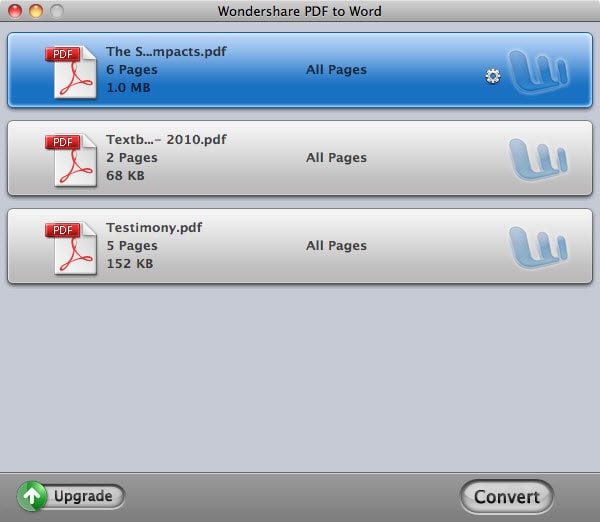
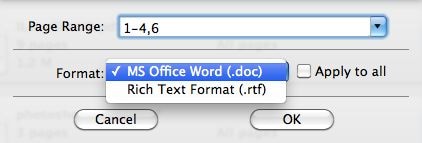
Click the  icon on each PDF item bar to select PDF pages or page ranges to convert. And in the format drop-down list, you should select either MS Office Word (.doc) or Rich Text Format (.rtf) as the output format.
Click the Convert button to convert PDF to Word files. Wondershare PDF to Word for Mac will finish the conversion in a few seconds. After the conversion, you can go to the output folder to check the output documents. To find the output folder, just go to PDF to Word > Preferences... > Destination.
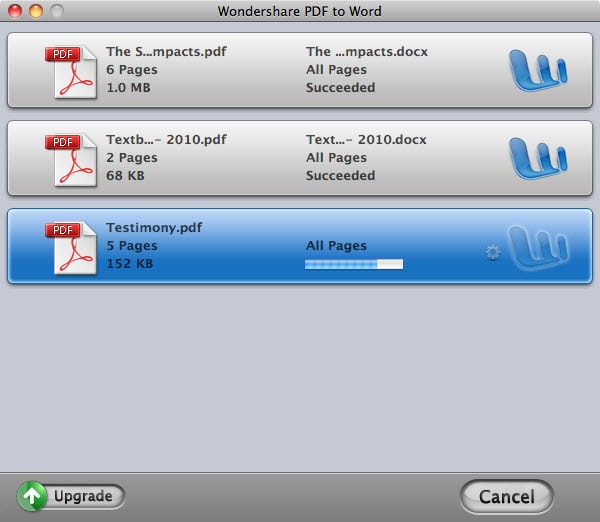
Note: The Convert button will become a Cancel button when the conversion starts. During the conversion, you can stop the conversion process by clicking the Cancel button.

We value your privacy and protect your financial and personal data with full encryption and advanced fraud protection.

Knowledgeable representatives available to assist you through instant live chat – any time of day or night.

Try before you buy with a free trial – and even after your purchase, you're still covered by our 30-day guarantee.

Create amazing videos easily using Filmora's wide range of powerful editing tools.

dr.fone Reinventing together. Your ultimate stop for digital solutions.

Get Control Over PDFs Like Never Before.

The Most Powerful Video Converter Ever in the market.

