


SECURE
We value your privacy and protect your financial and personal data with full encryption and advanced fraud protection.


AllMyTube for Windows is an integrated video downloader to download videos from 1000+ video sites for watching on iPhone 6 (Plus), iPhone 5s/5c/5, iPad, iPod touch, etc.
Download and install Wondershare AllMyTube for Windows. Then run AllMyTube by double-clicking the AllMyTube desk icon. AllMyTube works perfectly with Internet Explorer and Firefox only. Use any one to effortlessly download videos.
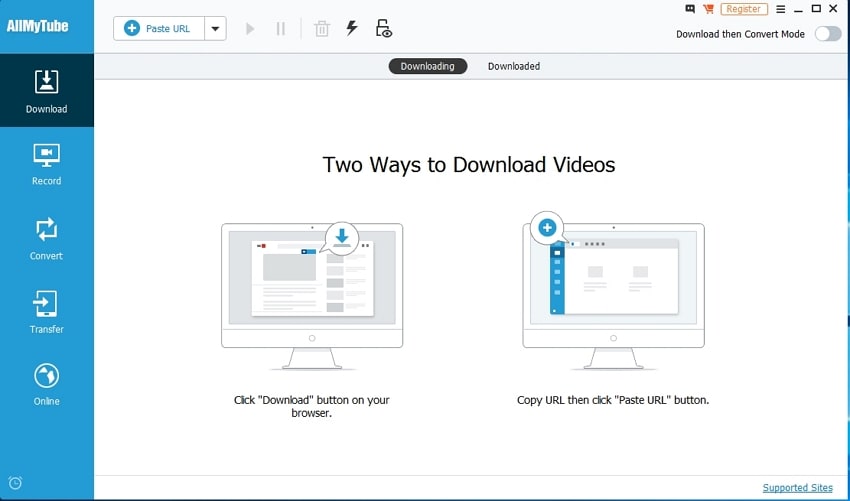
Launch Internet Explorer or Firefox and open your desired video(s). Play the video(s). Alternatively, you can use AllMyTube’s integrated browser in the “Online Video” window to access the sites you want and download videos from there.
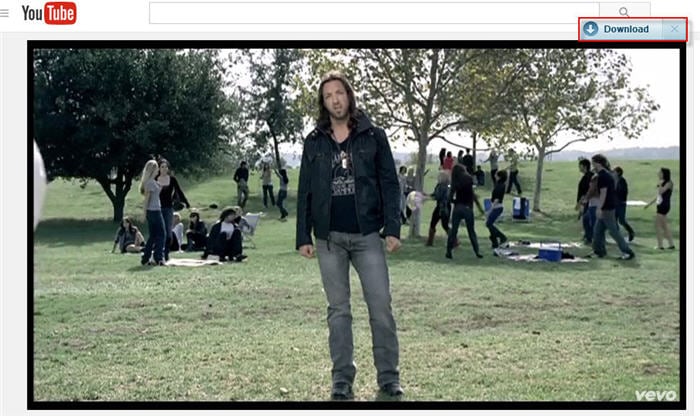
1) Press the Download button which should appear upon pageload on the top right corner of the video.
2) Or copy the URL of each video and click the + Paste URL button in AllMyTube’s “Downloading” interface.
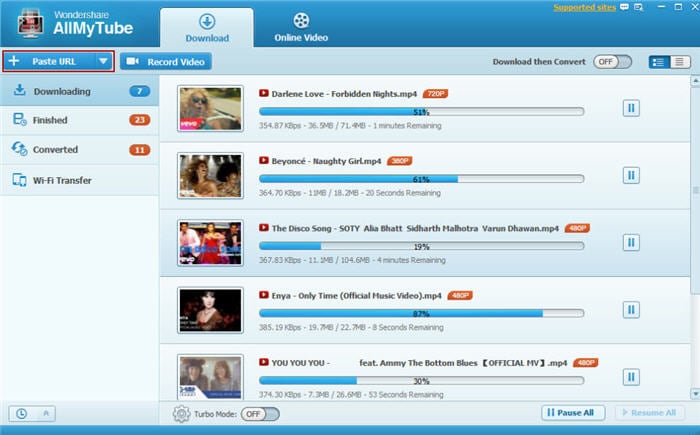
Pretty easy, huh? What's more amazing is you can download videos all at once—in batch. By default, up to 5 videos can be downloaded at one time (after adjusting settings, the maximum is 10). Feel free to download and enjoy videos on the go.
Two ways to download the audio tracks from your favorite YouTube music videos, concert shows, video courses, and more.
1). From the drop down menu of the integrated “Download” browser plug-in button, select “Only Audio” to instantly start your audio track download.

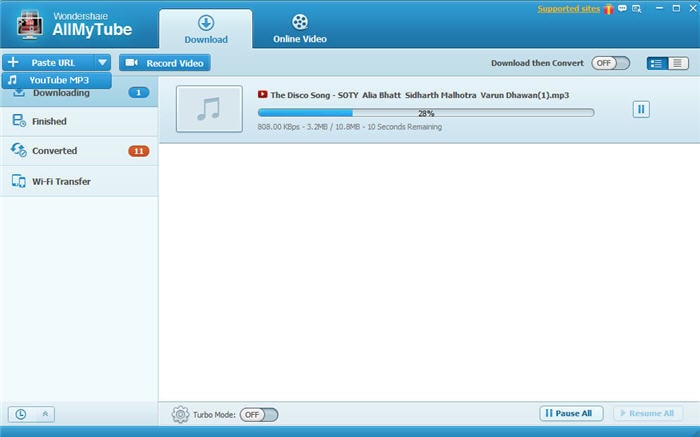
2). Download the audio via copy/paste your YouTube video URL: Copy the URL of the YouTube video and click the drop down “YouTube MP3” button from “+ Paste URL” Downloading menu.
After you've successfully downloaded tons of videos, maybe you want to watch these videos on your mobile device(s) like iPad 4, iPad mini, iPhone 5, iPod Touch 5, PSP, Xbox etc. With AllMyTube, you can quickly and easily convert your videos to the optimized format for each device.
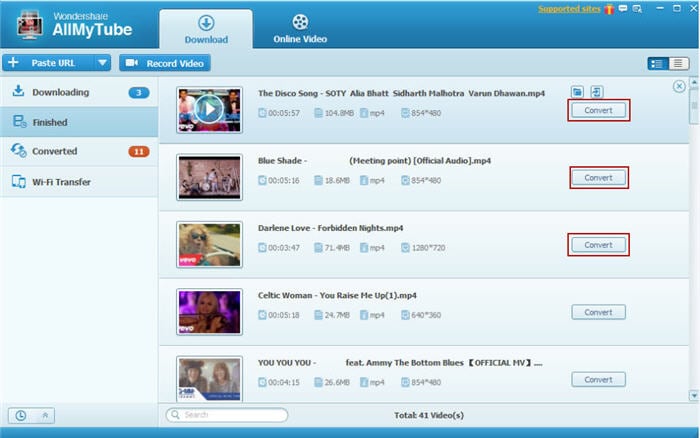
Select the videos you'd like to convert in the “Downloaded” Library and hit Convert on the right side of each video item bar.
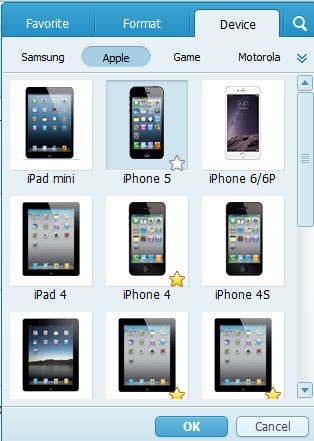
In the pop-up output format window, select the video format you need. You can also directly choose a device name as the output format. The output video settings have been optimized beforehand.
To import local FLV, MP4 or WebM files to your AllMyTube Library for management, right-click any space area on the right side of the “Downloaded” window, then select Import to add videos.
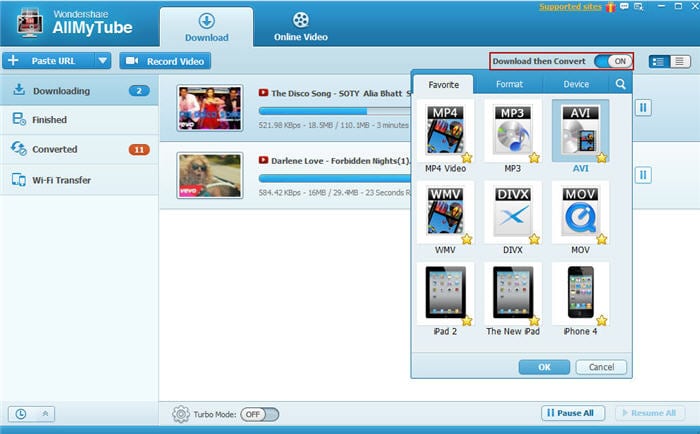
If you want to download AND convert video to a specific format simultaneously, switch on the “Download then Convert” switch located in the top-right corner of the main window. A list of output formats will appear. Select your desired output format. That’s it. Now, you can download videos using either of the methods mentioned in Part 1 and AllMyTube will convert automatically to the format you need.
If you prefer to record your favorite videos online (i.e. Netflix, Hulu Plus), you will need to launch the Video Recorder beforehand. Click on your Window’s ‘Start’ logo on the PC and type ‘Wondershare Video Recorder’ in the ‘Finder’. After that, open up the video’s online site and play the video. You will then notice that a red bracket over the streaming video with the  button prompted on the top-left corner of the video.

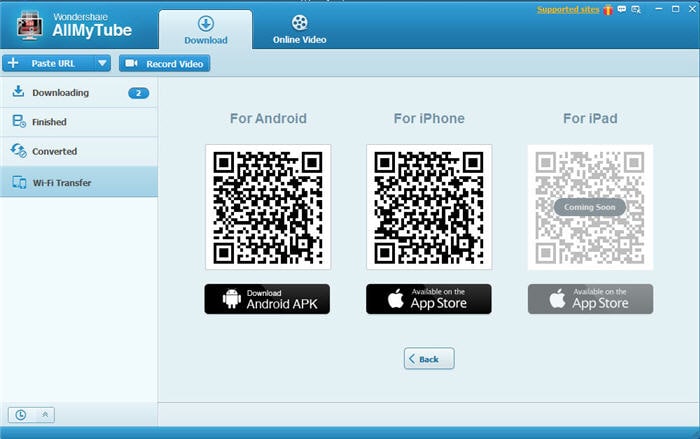
Click the Connect button on the left panel to bring up the wireless transfer setup menu. The free Wondershare Player mobile app is required for performing the wireless file transfer between your computer and portable devices. Follow the instructions Click here, if you are setting up Wondershare Player App for the very first time.
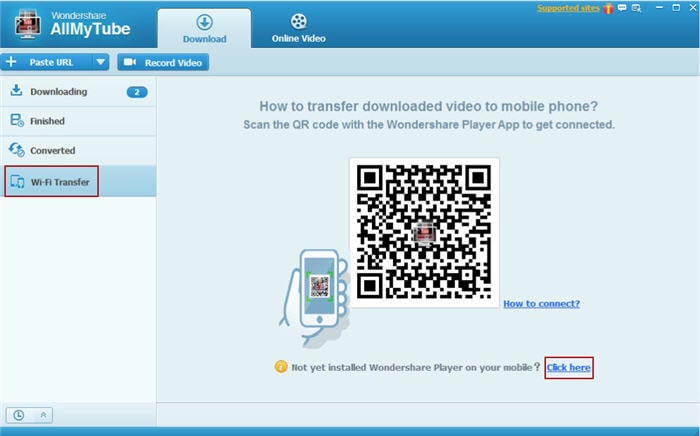
Scan the QR codes or click on the links below to have Wondershare Player App installed on your mobile devices.
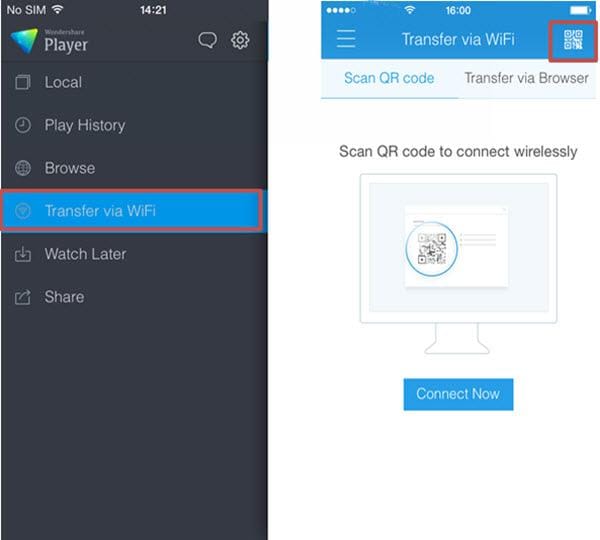
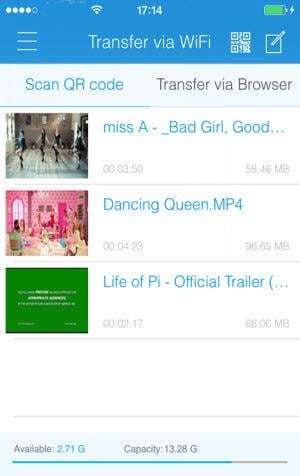
Launch Wondershare Player App once it’s installed on your mobile device. Then select the Transfer via WiFi option and use the scanner to scan the QR code showed on your AllMyTube Connect menu to establish a data transfer connection via your existing Wifi network.
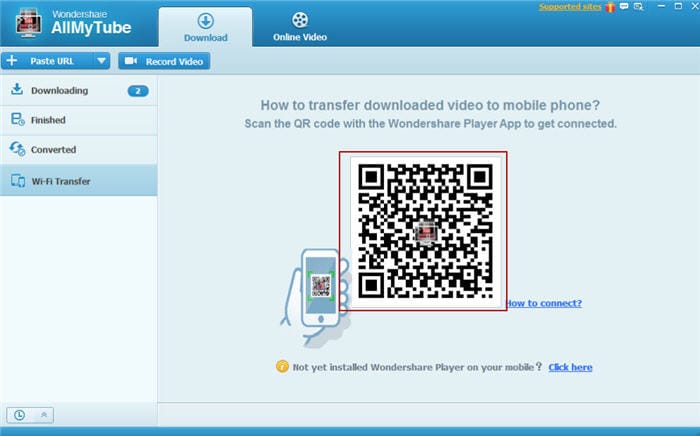
Once being prompted that a wireless connection has been successfully established between your computer and the portable device, you can click on the wireless transfer icon of the videos that you wish to transfer in the Finished Library to start the file transfer process. You can also check the transfer progress in the Connect Menu with the option to pause and resume the file transfer at any time.
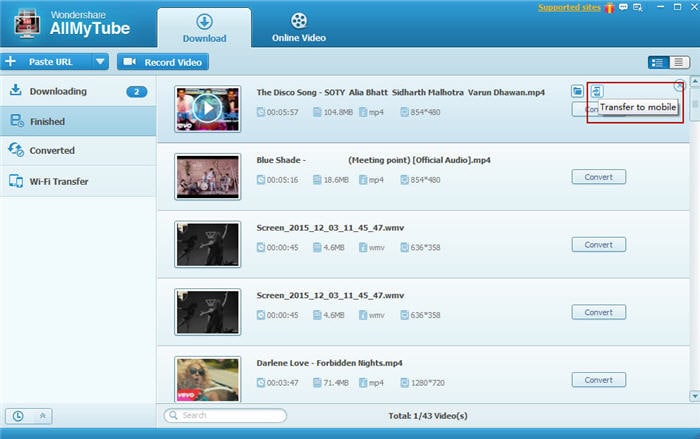
After the file transfer is complete, you can enjoy the transferred video right away on your Apple or Android devices with the Wondershare Player App.

We value your privacy and protect your financial and personal data with full encryption and advanced fraud protection.

Knowledgeable representatives available to assist you through instant live chat and email response within 24 hours.

Try before you buy with a free trial – and even after your purchase, you're still covered by our 30-day guarantee.

Much more than a converter – Convert, edit, enhance, download, burn, organize, capture, and watch in over 150 formats.

Burn your videos, audios and images to create DVDs with the help of this easy to use but powerful DVD creator. DVD Creator is now fully compatible with Windows 10.

Cut, edit, merge, and trim clips. Add music and text. Apply special effects. Get a professional-looking movie in minutes.