
wondershare | AllMyTube
Download Videos from 10,000+ Sites, Quickly & Easily
Download videos from YouTube and 10,000+ other video sharing sites like Dailymotion, Vimeo on Windows for offline access or for playback on your mobile devices.


Download videos from YouTube and 10,000+ other video sharing sites like Dailymotion, Vimeo on Windows for offline access or for playback on your mobile devices.
There are tons of hot video sites other than YouTube! This video downloader allows you to download SD and HD, as well as 4K videos from YouTube and over 10,000 other popular video sharing sites, including Dailymotion, Break, Metacafe, BlipTV, Vimeo, AOL, Lynda, MegaVideo, Veoh, VideoBash, LiveLeak, MyVideo, FunnyOrDie, Nico Video, TV.com, Veevr, Adobe TV and more.
This YouTube downloader enables you to download an entire YouTube channel and playlist. With only one click, all videos in the playlist can be downloaded at one time.


Download the video by clicking the “Download” button displayed at the top right corner of the video that is opened in a browser. (i.e., Firefox, Google Chrome, etc.).

Copy the URL of the video that you wish to download and paste this URL by clicking on the “Paste URL” button.

You can record the video while it is streaming (i.e., through Vimeo and other platforms) by clicking the “Record Video” button of the video downloader.
Directly download MP3s from YouTube, Dailymotion, Vimeo and over 10,000 other video sites, without downloading the entire video file.
Extract audio files from videos and save these audio files as MP3, M4A, AC3, WMA, WAV, OGG, APE, MKA, AU, AIFF, FLAC, MRB and other popular audio formats.
Offer compatibility with more than 150 video formats and thus enables you to download multiple video formats and even convert them to other supported popular video formats, including MP4, AVI, MPG, MKV, WMV, M4V, MOV, ASF and others.
Convert downloaded videos to iPod, iPhone (iPhone 6S included), iPad, Android tablet, Android phones, PSP, Xbox, Apple TV and friendly video formats, as well as directly transferring videos from PC to Android and iOS devices via your existing Wi-Fi network.

AllMyTube allows you to download videos in different resolutions and it supports a total of 7 resolutions. You can download the 1080P HD videos to enjoy high-quality graphics on TV or convert videos to 240P SD in order to save space on your mobile devices.


The video downloader features a multithreading technique that makes full use of your bandwidth and computer to download YouTube videos in no time.

You will not have to wait for a long list of videos to finish the download process; instead, you can select one of the 3 scheduler options: Auto Shutdown mode, Sleep mode or Exit Program mode.
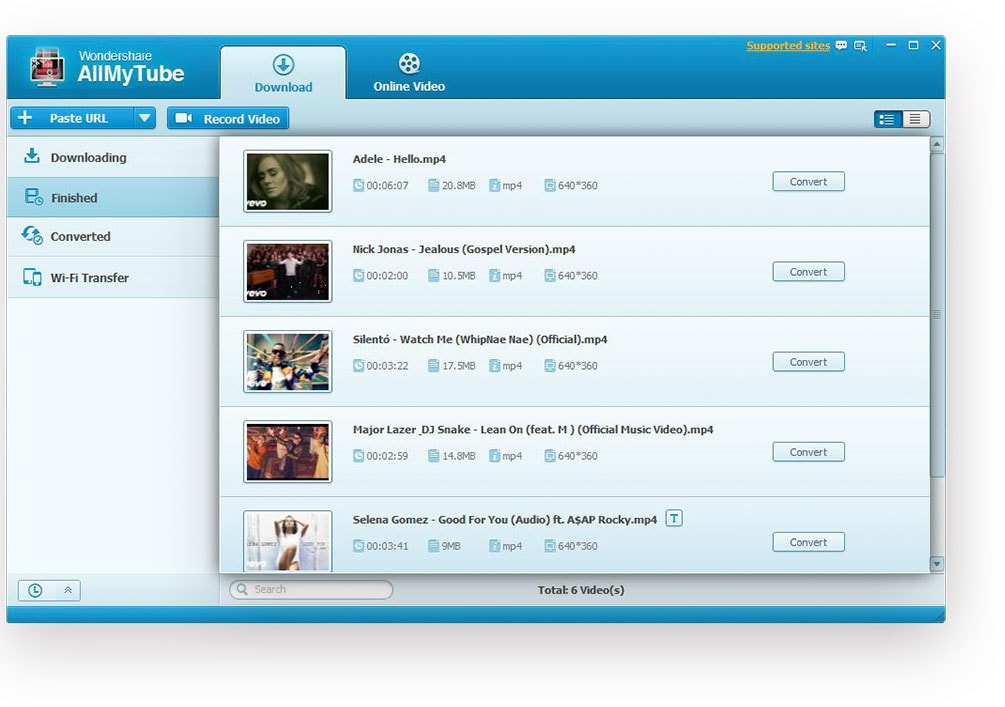
This YouTube downloader automatically saves the downloaded videos in the “Finished” library and the converted videos in the “Converted” library. You can add the downloading videos to the “Downloading” library and to prepare them to be transferred you can add them to the “Wi-Fi Transfer” library separately. By using this video downloader, all your videos will be well managed and kept in order.
 PLAY
PLAY CONVERT
 TRANSFER
 SHARE
SHAREThe video downloader also allows users to import local MP4 & FLV videos to the library. For this, you need to right click on the right window in the "Finished" library and then choose the "Import" option.
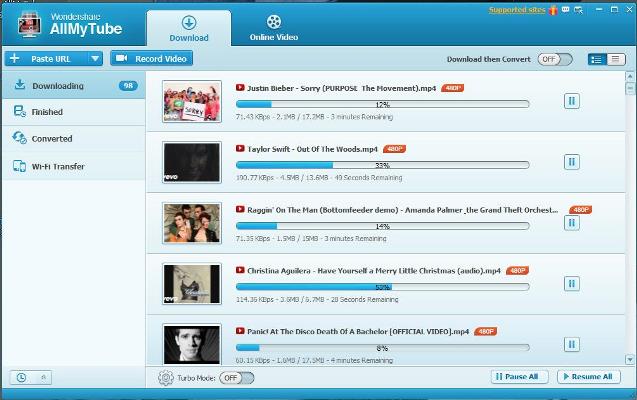 Download Videos: Download videos at ultrafast speeds and in high output quality.
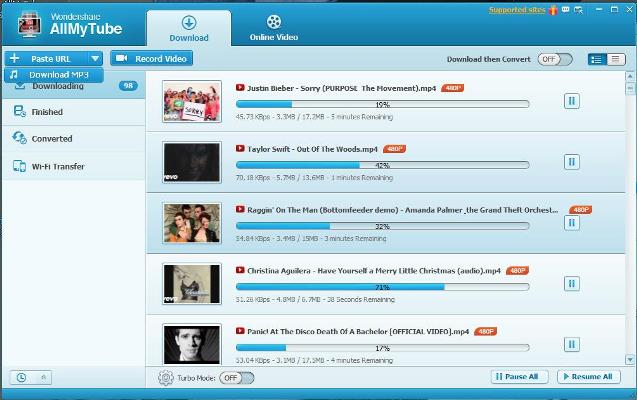 Download MP3s: Download MP3s directly which are extracted from the videos.
 Record Screen: Record videos while they are streaming by launching the Video Recorder.
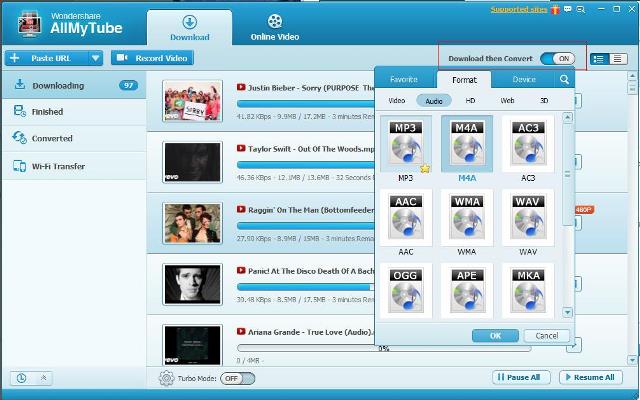 Convert Video Automatically: Set the "Download then Convert" function to realize the video format's auto-conversion.
 Convert to Multiple Formats: One click to convert video to a wide range of formats.
 Download Videos with multi-resolution: Download videos by clicking the button on the top-right corner of the video.

Create amazing videos easily using Filmora's wide range of powerful editing tools.

dr.fone Reinventing together. Your ultimate stop for digital solutions.

Get Control Over PDFs Like Never Before.

The Most Powerful Video Converter Ever in the market.

10+
YEARS OF DEVOTION

200+
COUNTRIES WORLDWIDE

50 000 000+
LOYAL USERS
