Wondershare Video to DVD Burner
- Want to burn your home movies and downloaded videos to DVD, regardless of format and with zero quality loss? With DVD Creator, ultrafast video to DVD conversion software by Wondershare, burn any videos to DVD at ease and utilize a built-in video editor to create DVD photo slideshows that'll wow the family.
Learn more about Wondershare DVD Creator.
Key Features of Video to DVD Burner
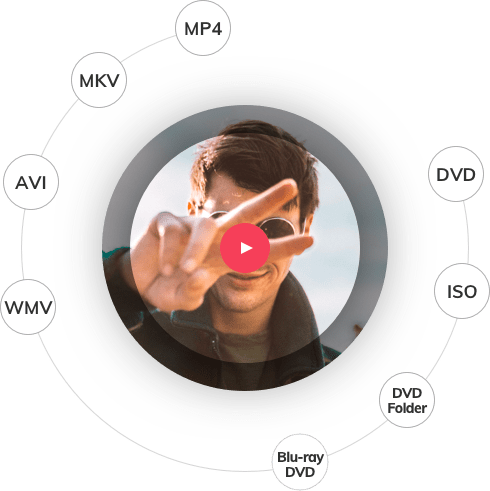
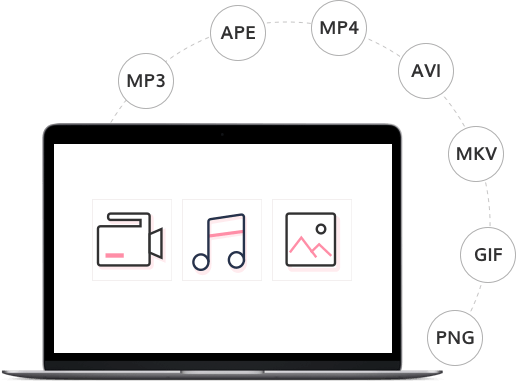
- Burn any video format to DVD, including all popular standard and HD formats like AVI, MP4, MPG, MPEG, 3GP, WMV, ASF, RM, RMVB, DAT, MOV, MTS, M2TS, etc.
- Craft photo DVD slideshow and custom slide duration, fades, captions, voiceovers, sountrack and more.
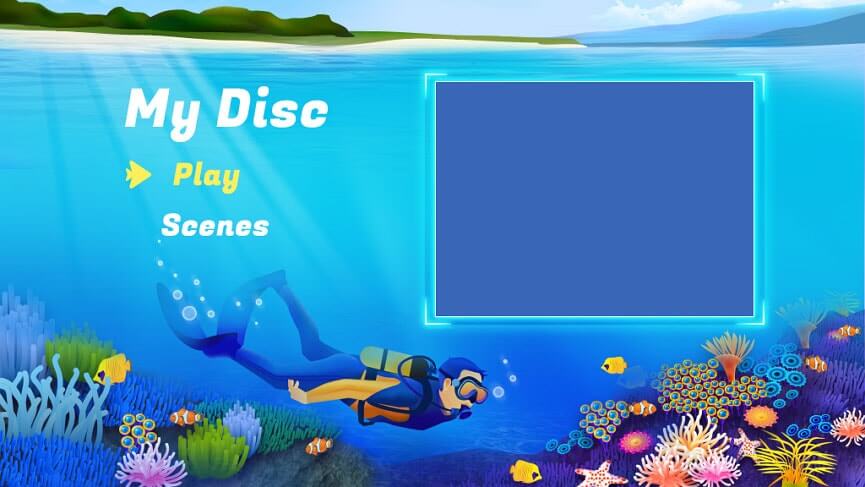
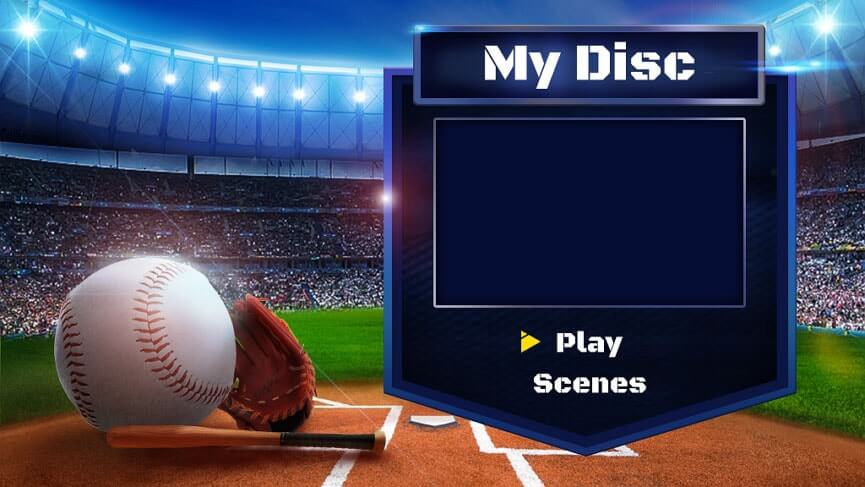
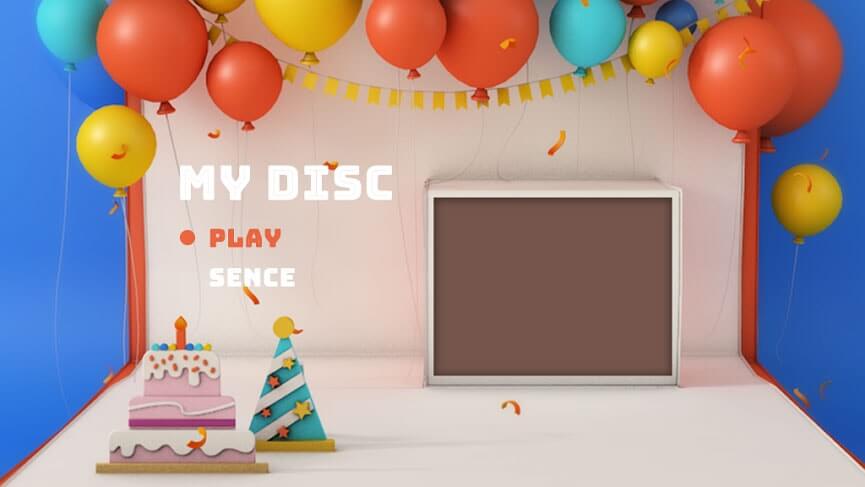
- Edit and retouch each video with a built-in video editor complete with 90+ preset free DVD menu templates.
- Preview each video before you burn and choose from 3 output formats: DVD disc, DVD folder and ISO.
Get started with Wondershare DVD creator
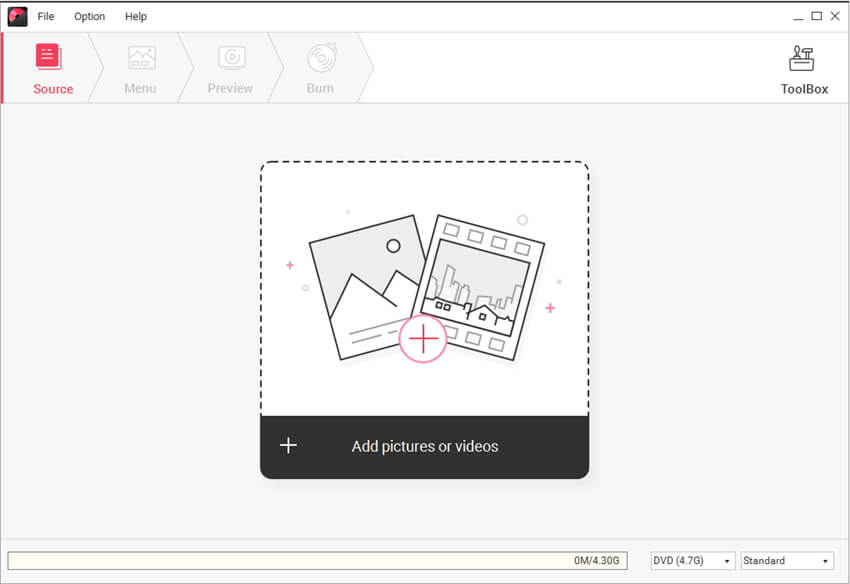
1 Load video files to Video DVD Burner
Install and import video to this video DVD burner. 2 ways are available: Drag videos directly into the program or click "Import" to add video files. After all videos loaded, you can double click the video preview them on the right screen. If necessary, you can also click the "Edit" button to adjust brightness, contrast, video volume, trimming, watermark, subtitle, and so on.
To rearrange the videos, you can click "↑“ or "↓” change the order, or delete DVD titles you don't want. You can also load some photos to the software to make a photo slideshow.
2 Customize DVD menu (optional)
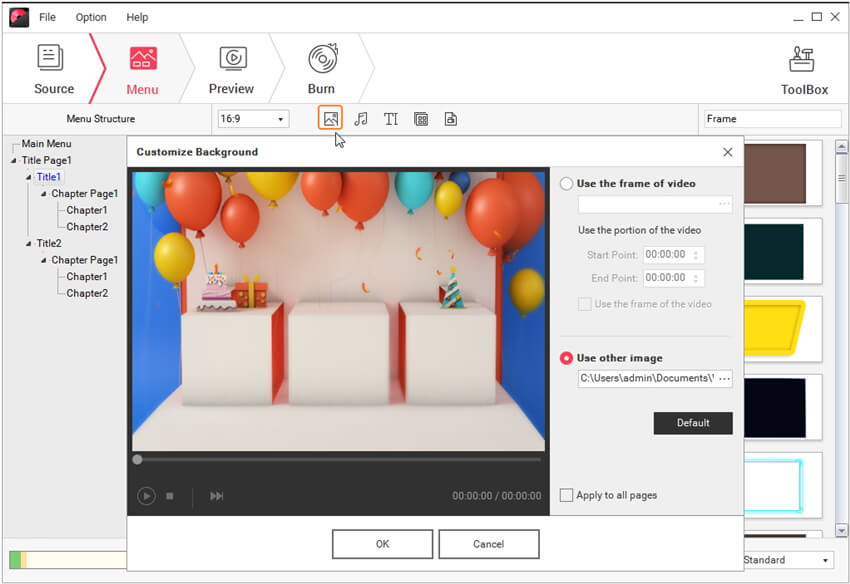
Click the "Menu" tab and choose from 50+ static and animated DVD menu templates for your DVD videos. The menu structure will be shown on the left pane. In the menu page, you can effortlessly add text, change background image and music, customize thumbnails, create chapters, and so on.Tips: If you skip the DVD menu choosing step, the software will set a default DVD menu for you. To burn DVD without a menu, just select "No Menu" from the template.

3Preview and burn video to DVD
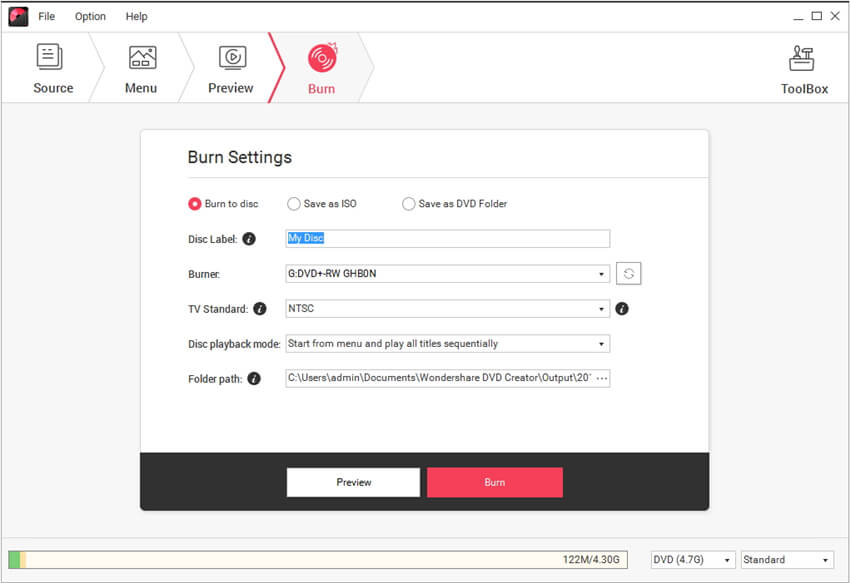
Now go to Preview tab to have a look at your entire DVD project. If everything is great, click "Burn" tab to make final settings to your DVD disc, like optional ISO Image file creation, DVD label, DVD size adjustment, etc. Finally, hit Burn to start video to DVD transferring. The burning time depends mainly on the video size and quality.
With this all-in-one video to DVD Burner, you can easily copy video to DVD to enjoy them on home DVD player. Or send the discs to your family and friends for better sharing.

Tips:
1. If you have third-party DVD burning software, you can also use this DVD burner to create DVD Folder or ISO image file. Wondershare DVD Creator is fully compatible with other DVD burning software like Nero and Roxio by generating standard DVD files.
2. If you are a Mac user, also see how to use Video to DVD Burner for Mac step by step.
Free download Video to DVD burner: