Recoverit file recovery software offers professional features to recover data efficiently. To recover lost or deleted videos,
and files from crashed computer systems and other storage devices, you can make Recoverit your perfect choice.
Recover your lost, deleted, or deeply hidden videos and photos, and retrieve all files from all devices.

Recover all kinds of video files, including home surveillance videos and driving recorder videos.

Apply deep scan technology to video defragmentation (patented). Recover the complete video by scanning the video format selected by the user. Check the patented video recovery process.

All photo formats can be recovered automatically, whether lost, deleted, or deeply hidden.

The Recoverit Advanced version is capable of aiding you in corrupted, truncated, and broken video repair. It provides you with two repair modes - quick and advanced repair, meeting different needs and improving the repair quality.

Recording after a crash, water damage, shaking, falling, battery dead, unexpected shutdown during video recording, etc.

The lost video was recovered but failed to play for some unknown reasons.

Support to fix videos from various devices like Cannon, Nikon, Sony, Panasonic, GoPro, DJI etc.


Locations Data Recovery
Recover lost files from hard drives or external storage devices like USB flash drives. The memory card data recovery and disk image recovery is also supported!

Computer Recovery
Create a bootable USB flash drive to access your crashed computer data and recover it safely with Recoverit file recovery software.

Data Recovery
Recover data from NAS hard drives by establishing a remote connection without dismantling the NAS server.

Data Recovery
Easily retrieve deleted files from Linux devices. The Linux Recovery is highly compatible with EXT4, BTRFS, XFS, and BFS file systems.
Losing data can be frustrating. If this happens to you, please troubleshoot the possible
causes to better recover deleted files.






Recoverit is dedicated to more straightforward, secure, and intuitive technology for data recovery.
Thus, you can bring back all your videos and files in 3 steps.
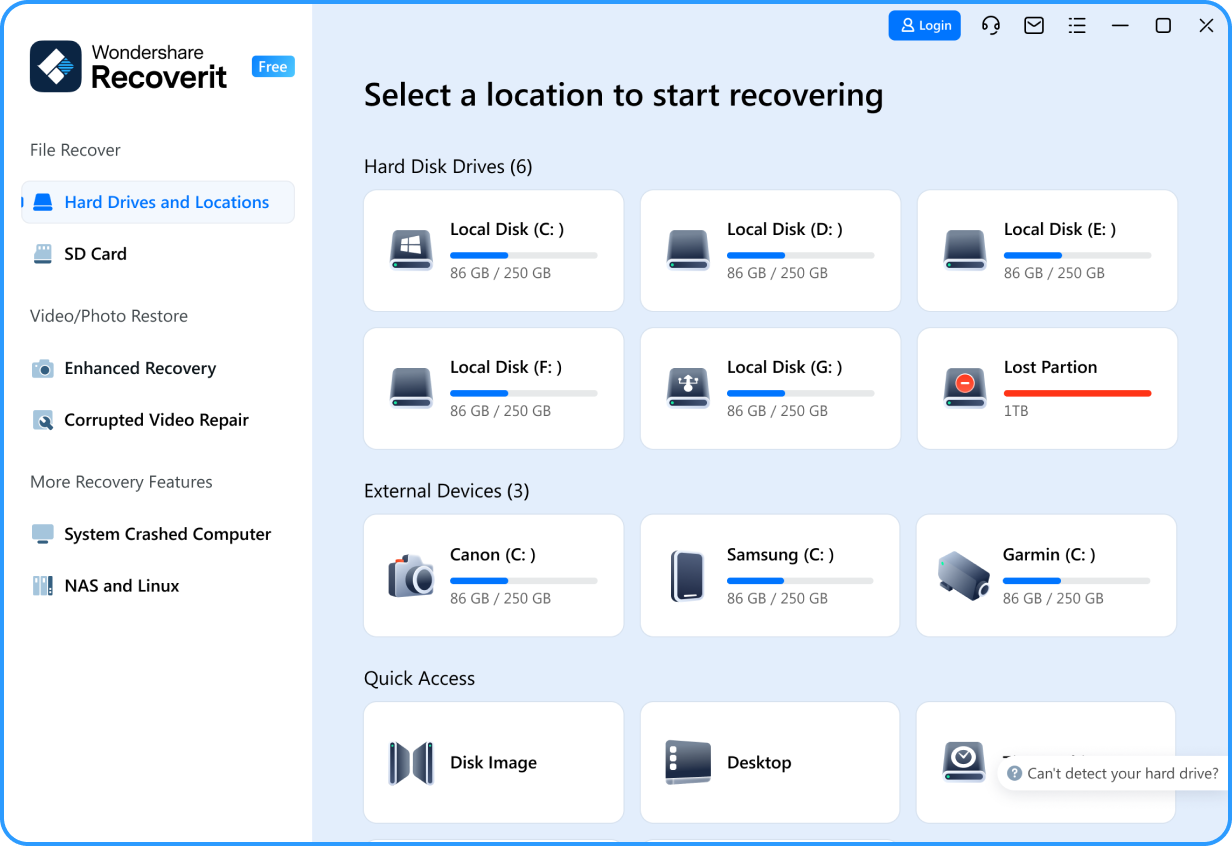
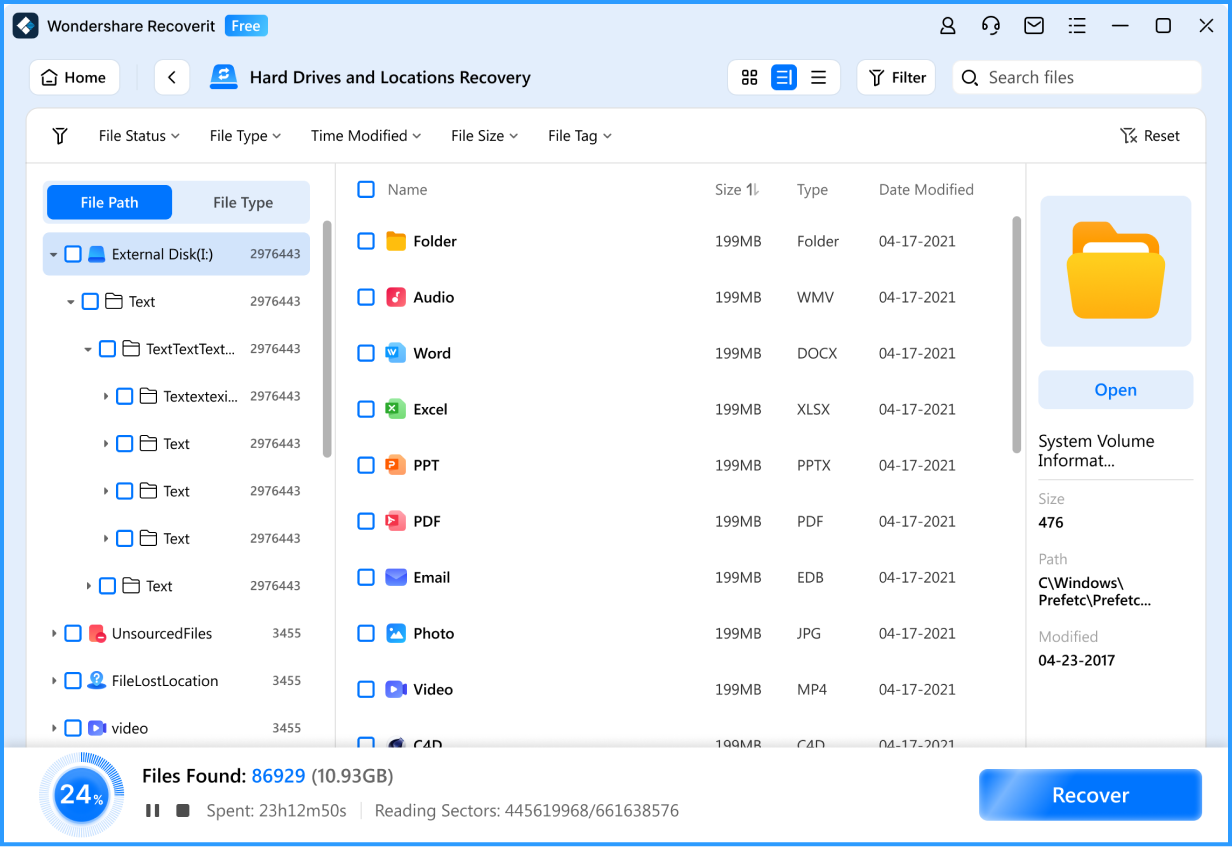







Recoverit Data Recovery is a flagship product of Wondershare, which is one of the most trusted brands in the data recovery industry. Recoverit Data Recovery has a vast presence in over 160 countries and is actively used by more than 5 million people. It is extremely easy to download Recoverit free version on one's Mac or Windows PC. The recovery tool has a free version available for every leading operating system. Though, to access its premium features, users need to get a paid subscription.
Wondershare Recoverit Data Recovery is the most popular software and trusted by customers on download.cnet.com. You can download Recoverit Data Recovery software for free.
It is possible to recover the deleted data using Wondershare Recoverit software. It brings a redesigned user interface that simplifies the process by which files are recovered - so now you only need to scan your system once to find your files. Scanning is much faster and you’ll see bigger preview boxes, helping you see exactly what you can recover, and once you decide to recover the files the recovery time is quicker than previously.
Recoverit promises to help you recover deleted, lost data, with a high recovery rate, making the process as stress-free as possible. Both available for Windows and macOS, Recoverit data recovery software is here to recover all file types including the files you use on a daily basis like photos, videos, audios, emails, and documents.
Many data recovery apps are basically bloatware, but Recoverit for Mac is the real deal. It’s lean, intuitive and effective, so you can easily recover photos, video and audio files, emails and all kinds of documents. Whether you lost data in an accident, thanks to a crashed operating system, the blue screen of death, or even boot issues, it’s a simple process to recover.

I had an HDD die - couldn't even see it in bios. I was able to do a sector-by-sector clone to a functioning HDD using an offline clone machine, but the data was still unreadable/corrupt. I downloaded the free trial of Recoverit and could see thousands of recoverable files. I purchased the Recoverit software and was able to restore over 300 gb of data I thought was gone forever. Highly recommended for corrupt or unreadable data you need to get back.

I'm a volunteer repairer at a UK Repair Cafe which is a world-wide Charity that repairs things for free to avoid landfill and CO2 and to help people that don't have the skills to do their repairs. I was asked to recover a lifetime of business and personal photos (about 2,900) from a phone memory card that had become seriously corrupted and had never been backed up! I tried everything I have and was about to give up when I tried Recoverit. An absolute miracle for the owner who couldn't have been more grateful. It isn't a tool for novices but if you have the patience to understand how it works and to wait for the results it might just be a miracle for you too.

I have used this video repair tool to repair videos in different formats, and every time it has proved itself to be a reliable video repair tool. Recoverit is very handy; if you want to have a preview of the file and don’t want to save it. The trial version allows you to preview the complete video file for free.

I am a professional real estate photographer and I lost my dng files due to a DLSR camera issue with the SD Card slots. Wondershare found and recovered the files on my SD Card I used to shoot 3 properties and saved me so I could still deliver the photos to my clients.

I lost a bunch of super important footage on an SD card and was able to use RepairIt and RecoverIt to get it all back. It was like 280+ videos and was worth every penny. The customer service chat people were instantly available and I chatted with them until 5 in the morning and we figured it out. This was life saving and saved me so much grief. THANK YOU!
Reliable Data Recovery Solution For Everyone
Photo Gallery / Raw Footage / Edited Footage / Audio Recording / Scripts ...
- Recover accidentally deleted photos or videos;
- Storage device accidentally damaged, resulting in photos or videos damaged or lost;
- Accidentally format storage device, like a formatted hard drive;
- Lost or damaged files due to virus or malicious software attacks;
- Data loss or damage due to power outage;
- Files accidentally lost or damaged during data migration.

Student Reports / Presentations / Dissertations / Case Studies / Questionaries / Materials …
- The file storage - USB drive and hard drive problems like being old or damaged;
- The document export process terminates abnormally;
- The storage device is mistakenly formatted;
- A finished but uncopied article file is mistakenly deleted;
- The laptop shuts down or restarts unexpectedly;
- The reference list is interrupted before completion.

Portable Documents / Word processing files / Spreadsheet files / Image files / Source code files …
- Documents, images, and videos were lost due to sudden power outage of the computer;
- Accidentally deleting completed documents;
- Lost project files due to design software stalling or crashing;
- Inability to find saved files due to storage device damage.

Digital Audio / Lossless music / Uncompressed audio file /Song demo …
- Hard drive failure resulting in the loss of recorded music files;
- Original files need to be restored due to recorder damage;
- Master recording files are lost;
- Music damage or loss caused during transmission.

Protected PDF / Emails / Audio recording / Surveillance video …
- Confidential documents were lost due to computer malfunction;
- Work emails were lost;
- Important audio files were deleted and lost;
- Lost surveillance footage due to human error.

Technical Documentation / Diagrams and Models / Analysis Reports / Test Plans…
- Restore source code lost due to system crashes;
- Recover important data from damaged hard drives;
- Recover important files or data mistakenly deleted due to accidents;
- Regain lost data from formatted drives.

- Enhanced Photo & Video Recovery
- NAS & Linux Recovery
- Disk image Recovery
- Upgraded Video Repair
- Brand New Interface
- Windows11/10/8.1/8/7/Vista/XP
- Windows Server 2003-2022
- macOS 10.10-14
- ExFAT. FAT16. FAT32. NTFS. ReFS. Raid. RAW. ext4 and BTRFS under the Linux OS, etc


?
Can files be recovered from a failed hard drive?
?
Can I recover a specific kind of data?
?
How does the Recoverit file recovery program work?
?
Why it’s NOT suggested to recover the files back to the original drive?
- Get video tutorials on Recovery YouTube Channel
- Check Your 2023 Data Recovery Annual Report 📧
- Celebrate World Backup Day and Backup Data🔒