


A totally free tool to download videos from YouTube so you can watch all the videos you want offline and on the go.
Download Wondershare Free YouTube Downloader for Windows. Then double-click the .exe file to install it. When installation is finished, click to launch.
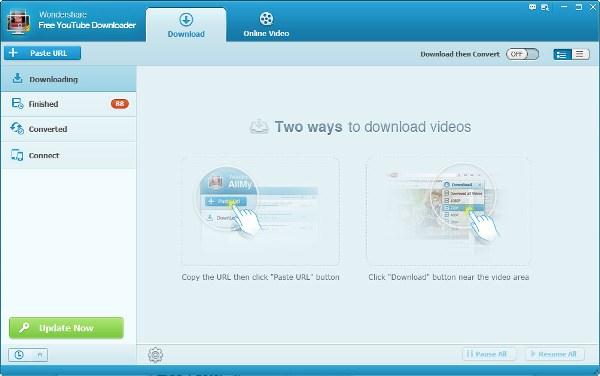
Note: Downloading videos from other 100 video websites like Hulu, VEVO and dailymotion is NOT available with Free YouTube Downloader. To download videos from these additional sites, please upgrade to Wondershare AllMyTube .
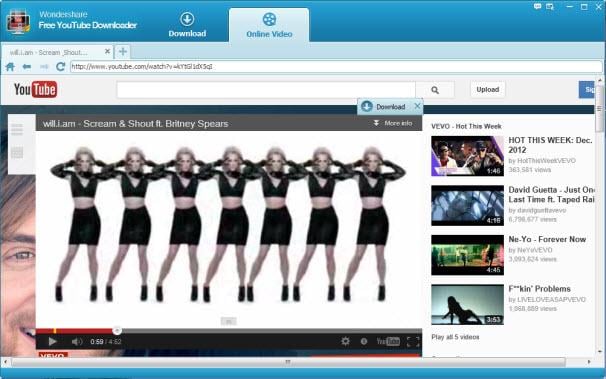
Three web browsers, IE, Firefox, Chrome, are supported by Free YouTube Downloader. Just run any one of the three or use the inbuilt browser by selecting the “Online Video” tab on the program's interface to find and open the target YouTube videos. And then you have two options to download these YouTube videos.
1) Via Download Button: When you open YouTube videos with your web browser, Free YouTube Downloader detects the video automatically. A Download button will appear above the top-right corner of the video screen. With one click, the video is added to the Free YouTube Downloader to be downloaded right away.
2) Via Copy and Paste URL: Copy the video URL and click the + Paste URL button on the main interface. That's it! You've made it.
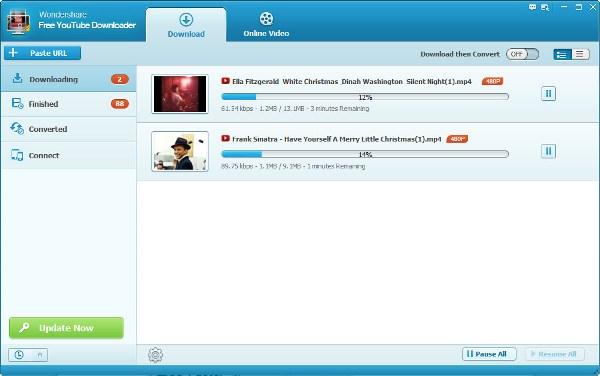
After your videos have been downloaded, double-click these videos in the “Downloaded” Library to play them using the integrated video player. If you need to add local FLV, MP4 or WebM videos to the video Library for easy management, just right-click any space of the Library's interface, and then select "Import" to add video files.
You’ll need to launch the Video Recorder if you wanted to record videos from popular online sites such as Netflix and Hulu Plus. Simply use the ‘Finder’ (from the PC’s ‘Start’ menu) to locate the Video Recorder. Then you can proceed to search for your favorite videos online. Once you click Play, there’ll be a noticeable red bracket over the streaming video. You can then click on the  button that’s prompted on-screen.

Ensure that your mobile device is connected to the same Wi-Fi network as your PC in order to establish a connection. After that, go to the Connect window of the program
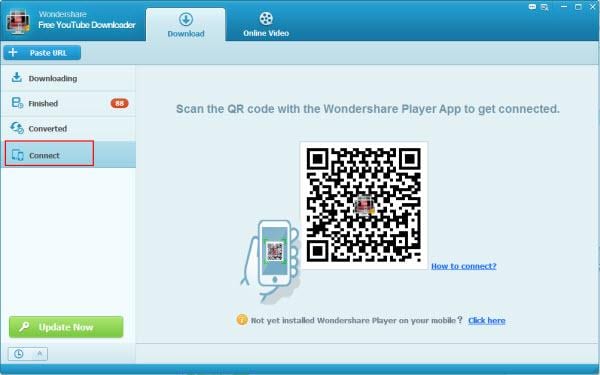
Download and install the Wondershare Player’s mobile app (skip this if you already have it). If you don’t have the mobile app, simply go to Click here in the Connect window to download it for your Android or iOS device.
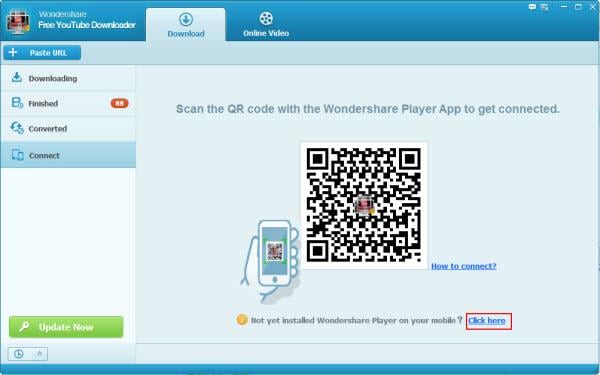
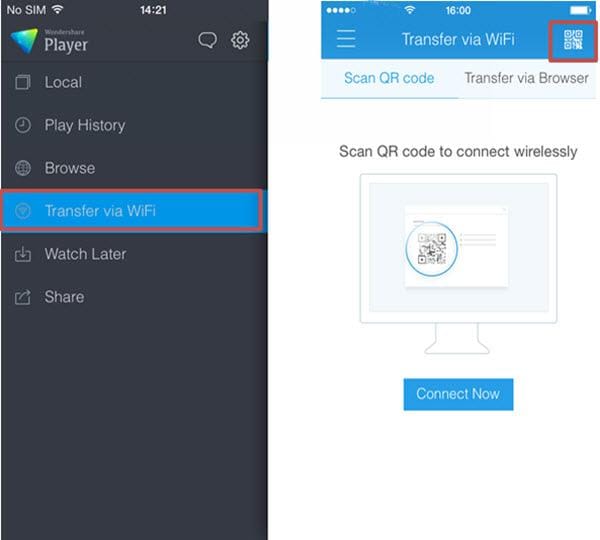
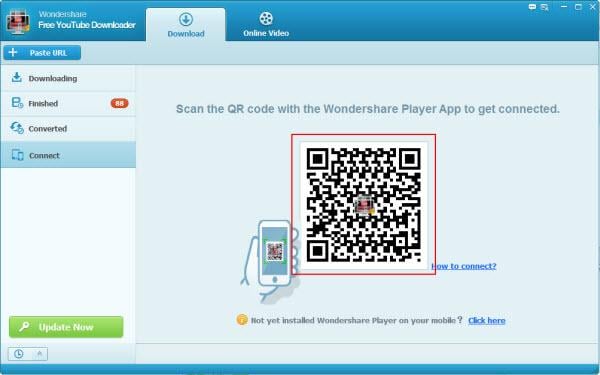
Go to Transfer via WiFi once you open the Wondershare Player on your mobile device and then click on the Scan QR code icon. After that, scan the QR code in the Free YouTube Downloader’s Connect window.
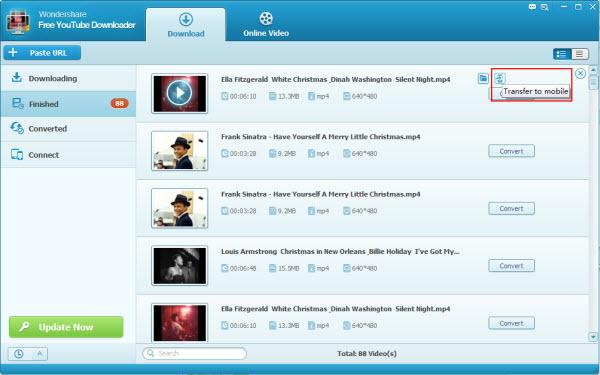
Go to the Finished’s tab to transfer downloaded files as it is by clicking the Transfer to Mobile icon.
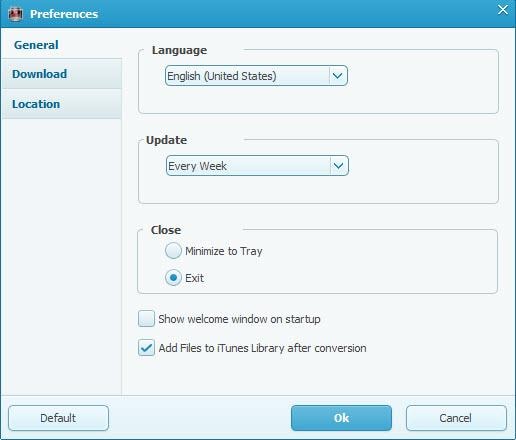
Customizable settings make YouTube Downloader work just like what you want. Here the Setting box includes three parts:
General: Adjust settings related to download controls and app updates.
Download: Adjust how many videos can be downloaded at the same time and automatically resume unfinished tasks upon startup.
Location: Define a path to save downloaded YouTube videos.

We value your privacy and protect your financial and personal data with full encryption and advanced fraud protection.

Knowledgeable representatives available to assist you through instant live chat – any time of day or night.

Try before you buy with a free trial – and even after your purchase, you're still covered by our 30-day guarantee.

Create amazing videos easily using Filmora's wide range of powerful editing tools.

dr.fone Reinventing together. Your ultimate stop for digital solutions.

Get Control Over PDFs Like Never Before.

The Most Powerful Video Converter Ever in the market.

